Request and approve holiday, see balances, and choose the month your holiday year starts.
For managers and carers
Request holiday (everyone)
- In the sidebar, open Rota & Scheduling and choose Holiday.
- Check your balance: Days entitlement, Days taken, Booked, Days pending and Days remaining.
- Press Request Holiday.
- Choose the Start Date and End Date. Care App counts the working days for you.
- Add notes if you want and press Submit Request.
- Follow it under My Requests. To take back a pending request, press Withdraw.
Approve or decline holiday (managers)
- On the Holiday page, open Team Requests, then Pending.
- Press Approve, or press Decline, choose a Reason and press Confirm Decline.
- To cancel holiday that was already approved, open All Requests, press Cancel and then Cancel Holiday. The days go back into the balance.
Set when your holiday year starts (managers)
- In the sidebar, open Finance, choose Finance, and open the Holiday tab.
- Next to Holiday year starts on 1, choose the month. The default is January.
- It saves straight away. The line beside it shows the dates of this holiday year.
Good to know
- Changing the holiday year start month changes every balance on the Holiday page and the Finance Holiday tab at once. There is no confirmation, so check you have the right month.
- Balances reset by themselves at the start of each holiday year. To carry days over, change the person's Annual Leave (days) on their pay profile.
- Entitlement for full-time and part-time staff comes from their pay profile and is pro-rata from the start of the holiday year. Zero hours and bank staff build up holiday at 12.07% of hours worked.
- You can still send a request that goes over your balance. Your manager will see that it does.
- Once holiday is approved, only a manager can cancel it.
- Team leaders cannot approve holiday. Senior managers do this.
- Approved holiday is included in payroll for contracted staff.
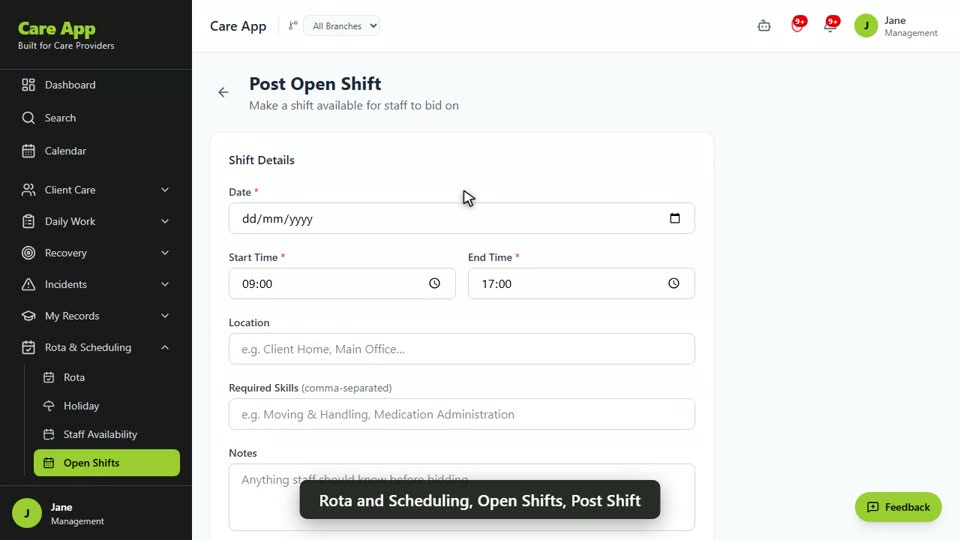
Watch the guide video: Video 8: Open shifts, bids and holiday (1:34)
Videos were recorded in September 2026, so a few screens may look slightly different today.
Still stuck? Email hello@care-app.uk and tell us which screen you were on. We aim to reply within a few hours.