Invite your whole team in one go by pasting names and emails, or add one person at a time.
For managers
Invite several staff at once
- In the sidebar, open Staff and choose User Management.
- Press Add several staff.
- In the box, put one person per line: name, email, role. For example:
- Priya Shah, priya@example.co.uk, carer
- Tom Bell, tom@example.co.uk, team leader
- Check the list under Check before adding. Each line shows Ready or what is wrong with it.
- Leave Email each person a link to set their own password ticked.
- Press Add staff (the button shows how many people will be added).
- Read the result, for example "5 staff added, 5 invites sent". Then press Next: put them on the rota if you are ready.
Add one person
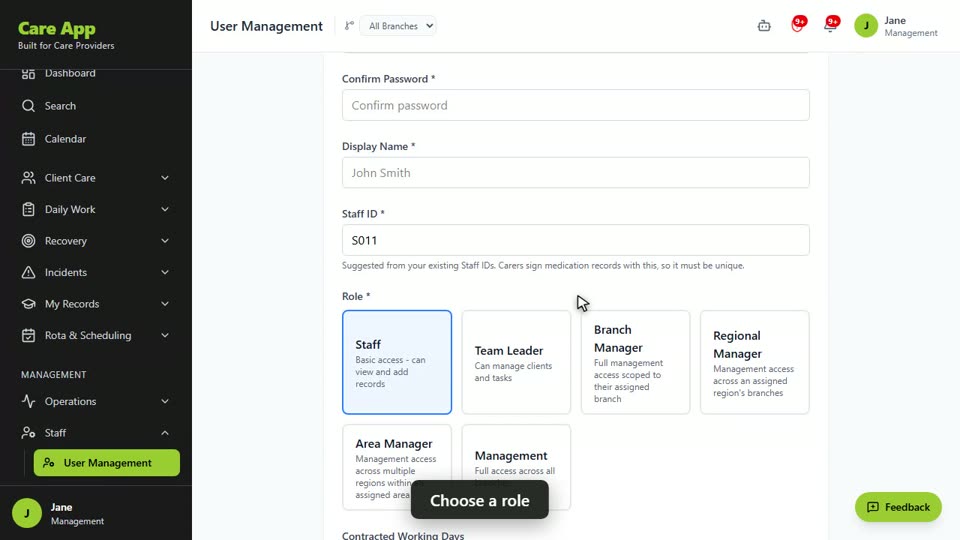
- Go to Staff then User Management and press Add New User.
- Fill in Email, Display Name, Staff ID and Role.
- Leave Email them a link to set their own password ticked.
- Add their Contracted Working Days and Care Skills if you know them. Skills help the rota suggest the right person.
- Press Create User. On a paid plan, confirm the billing notice with Confirm & Create User.
Which role to choose
| Role | What they can do |
|---|---|
| Staff (carer) | View and add records: care notes, medication, observations, incidents |
| Team Leader | Also manage clients, care plans, medication set-up and tasks |
| Management | Full access, including staff, finance, settings and billing |
On plans with branches you will also see Branch Manager, Regional Manager and Area Manager. They manage their own part of the organisation.
Good to know
- Email and role are optional. If you leave the role out, the person is added as a carer. If you leave the email out, they get a staff profile with no login.
- Lines with a problem are skipped, not added. Common problems are a missing name, an email that does not look right, or an email that is already set up.
- The invite link lasts one hour. If someone misses it, they can type their email on the sign-in screen and press Forgot your password? to get a fresh link. If an invite fails to send, the result screen offers Send the invite again.
- The Staff ID must be unique. Carers type it to sign medication records, so every carer needs one.
- Profile only (no login) creates a record for DBS, training and documents. Profile-only people are not billed as users.
Watch the guide video: Video 6: Managing staff accounts and care skills (2:26)
Videos were recorded in September 2026, so a few screens may look slightly different today.
Still stuck? Email hello@care-app.uk and tell us which screen you were on. We aim to reply within a few hours.