Clock in from the dashboard or with a client's QR code, ask for more time, and clock out at the end.
For carers
Clock in from the dashboard
- Open Care App. On the Dashboard, find the Clock In / Out card.
- Allow location if your phone asks. The card shows Location on when it has your position.
- If you have more than one shift today, choose it under Which shift?
- Press Clock In. If you are late, type a reason and press Clock In (Late).
- Press Enter Shift on the "You're on shift" banner to open the visit screen.
Clock in with a client's QR code
- Scan the QR code at the client's home with your phone camera.
- Choose Check In and press Confirm Check In.
- If you have a shift with that client now, you will see "You are now clocked in" with your shift times. If not, clock in from the dashboard.
Need more time?
- 15 minutes before your shift ends, the card asks "need more time?"
- Press +30 min, +60 min or +90 min. Your manager has to approve the extra time.
Clock out
- On the dashboard, press Clock Out. On the visit screen, use Complete Shift & Clock Out.
- If Care App says something is missing, complete it, or press Acknowledge & Clock Out if you are allowed to continue.
- Answer "How are you feeling?" or press Skip.
Good to know
- Clock-in opens 60 minutes before your shift starts. Before then the card says when it opens.
- If your shift has a pinned location and you are too far away, Care App lets you clock in but flags it for your manager.
- Scanning a QR code to Check Out records the end of the visit but does not clock you out. Clock out from the dashboard too.
- On a shift with several visits, finishing the last visit does not clock you out. Go back to the dashboard and press Clock Out.
- If you forget to clock out, Care App may clock you out 30 minutes after your shift ends. Your timesheet then shows Auto Out and needs checking by your manager.
- No signal? See Working with no signal.
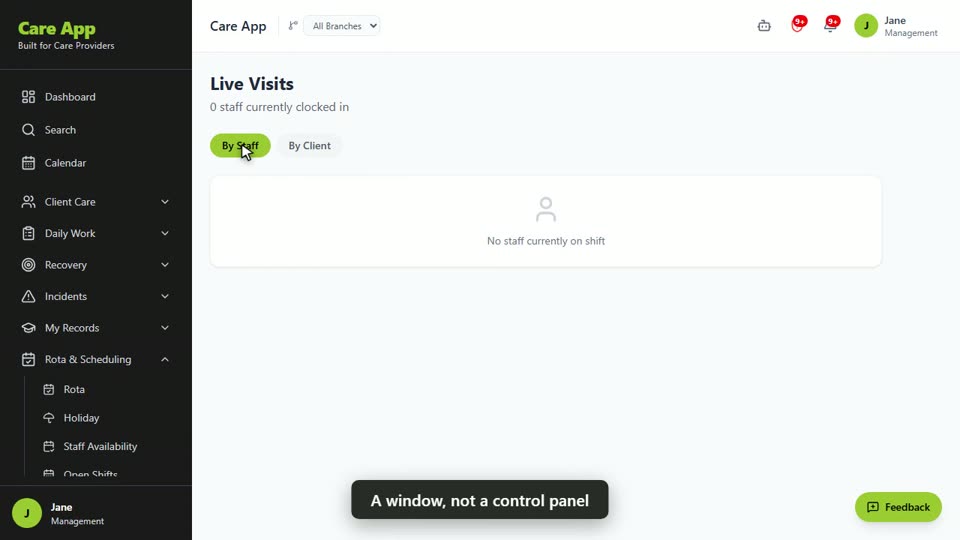
Watch the guide video: Video 10: Live visits, visit verification and QR check in (2:20)
Videos were recorded in September 2026, so a few screens may look slightly different today.
Still stuck? Email hello@care-app.uk and tell us which screen you were on. We aim to reply within a few hours.