Everything you need during a visit in one place: the client, medication, tasks, notes and how to finish.
For carers
Open the visit screen
- Clock in from the dashboard.
- Press Enter Shift. The On Shift screen opens with your times and how long you have been on shift.
Work through a visit
- If your shift has several visits, the Visit Schedule lists them in order. Press Navigate for directions, then Tap to arrive when you get there.
- Read the client card. Press Care plan or View profile if you need more. If a DoLS is in place, an amber notice shows its conditions.
- Under Medication, press Given, Refused or Missed for each due dose.
- Tick off the Visit Checklist and any Tasks.
- Use Log Observation for vital signs, food and fluid and other charts.
- Write a Care Note and press Save Note.
- If something is wrong, press Report an incident or concern.
- Press Finish with the client's name to record that you have left and move to the next visit.
- After the last visit you will see All visits complete! Press Go to Dashboard and clock out.
On a shift without a visit list, press Complete Shift & Clock Out when you are done.
My Visits
Open Daily Work, then My Visits to see your day's visits in order, with Get directions, Running late and Log mileage. Use Report issue (missed visit / unable to gain entry) if you cannot carry out a visit.
Good to know
- The visit screen only shows while you are clocked in.
- If you forget to tap arrive, Care App asks when you finish and offers Record both and finish.
- Your care note draft is kept on your phone until you save it.
- Previous Notes shows the last three notes, so you know what happened on the last visit.
- Press Leave Shift Screen to go back to the rest of the app without clocking out.
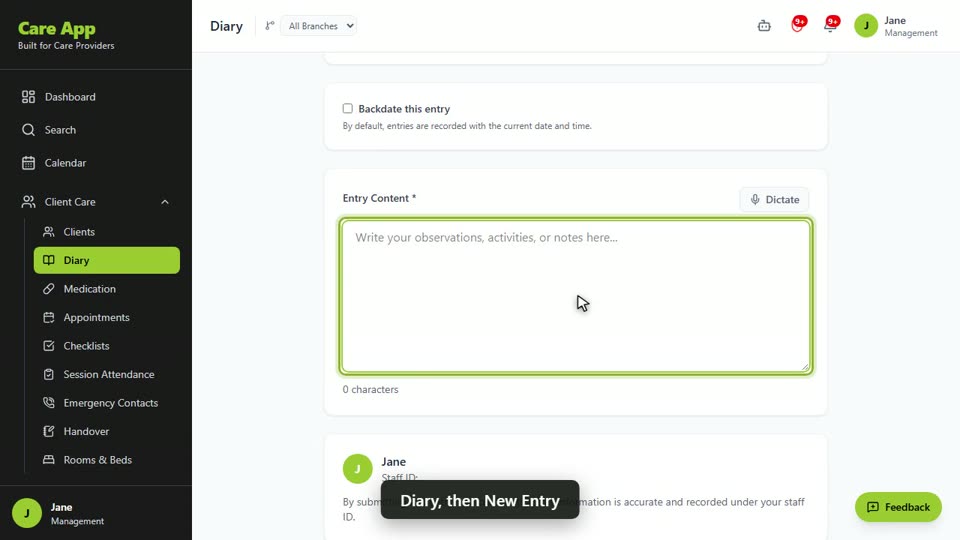
Watch the guide video: Video 3: Caring for a client day to day (2:51)
Videos were recorded in September 2026, so a few screens may look slightly different today.
Still stuck? Email hello@care-app.uk and tell us which screen you were on. We aim to reply within a few hours.