Create a client record with the details carers need, then find everything about them on their profile.
For managers
Steps
- In the sidebar, open Client Care and choose Clients.
- Press Add Client.
- Fill in First Name, Last Name and Date of Birth. These are the only required fields.
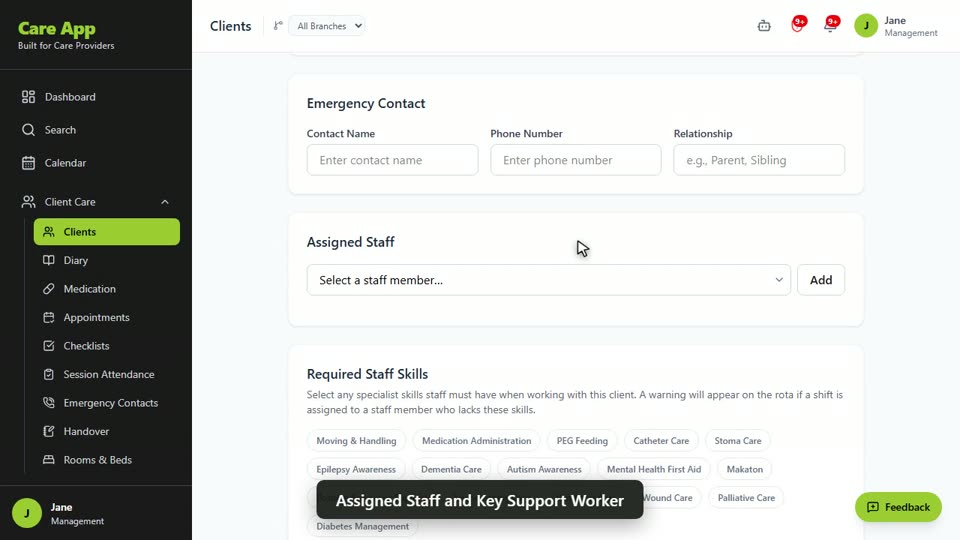
- Add what you know under Personal Information (phone, address, NHS Number) and Emergency Contact.
- Under Assigned Staff, choose a staff member and press Add. Repeat for each person who supports this client. Then choose a Key Support Worker if you have one.
- Tick any Required Staff Skills, such as Moving & Handling. The rota warns you if a shift goes to someone without them.
- Fill in Admission & Discharge (care setting and admission date) and Service & Key Information (funding, DNACPR status, consents, likes and dislikes).
- Press Save Client. The client's profile opens.
Find your way around a client's profile
The profile has a row of tabs. The ones you will use most are:
- Overview: key details, contacts and admission information.
- Diary: care notes from every staff member.
- Medication: medicines, records and the MAR chart.
- Care Plans and Risk Assessments.
- Health Logs and Body Map.
- MCA & DoLS and Documents.
Good to know
- Managers and team leaders can add clients. Carers can see the clients they are assigned to or on the rota with.
- Carers only see clients they support, so remember to fill in Assigned Staff or put them on the rota.
- Some tabs only appear on certain plans, and some are for managers only.
- Moving over from another system? Import your clients from a spreadsheet instead.
- Managers can press Print Record on the profile for a full printed record.
Watch the guide video: Video 2: Adding and managing a client (2:34)
Videos were recorded in September 2026, so a few screens may look slightly different today.
Still stuck? Email hello@care-app.uk and tell us which screen you were on. We aim to reply within a few hours.