Log food and fluid, vital signs and other charts, and mark bruises, wounds or skin changes on a body map.
For managers and carers
Record a health log
- Open the client's profile and go to the Health Logs tab. During a visit, use Log Observation on the visit screen instead.
- Choose the chart: Food & Fluid, Vital Signs, Bowel Chart, Seizure Log, Sleep Log or Catheter Output.
- Fill in the form. For example, a food and fluid entry needs the meal or drink type, a description of the food, how much was eaten and the fluid amount in ml.
- Press save. For food and fluid this is Save Entry. For vital signs it is Save Vitals.
Add a mark to the body map
- Open the client's profile, go to the Body Map tab and press View Full Body Map.
- Press the part of the body on the front or back diagram.
- Choose the Type (for example Bruise, Wound or Pressure Sore) and the Severity.
- Add the Date Observed, a Description and photos if your service allows them.
- Press Save Marker.
Good to know
- Any staff member can record health logs and body map marks.
- Vital signs need at least one reading, but you do not have to fill in every box.
- Each mark shows who added it. Managers press Mark Resolved once a mark has healed, and the mark shows who resolved it. Use Show Resolved to see old marks.
- When you add a moderate or severe mark, Care App offers Report incident so a manager can review it.
- An unexplained bruise or injury may be a safeguarding matter. Tell your manager straight away. See Record a safeguarding concern.
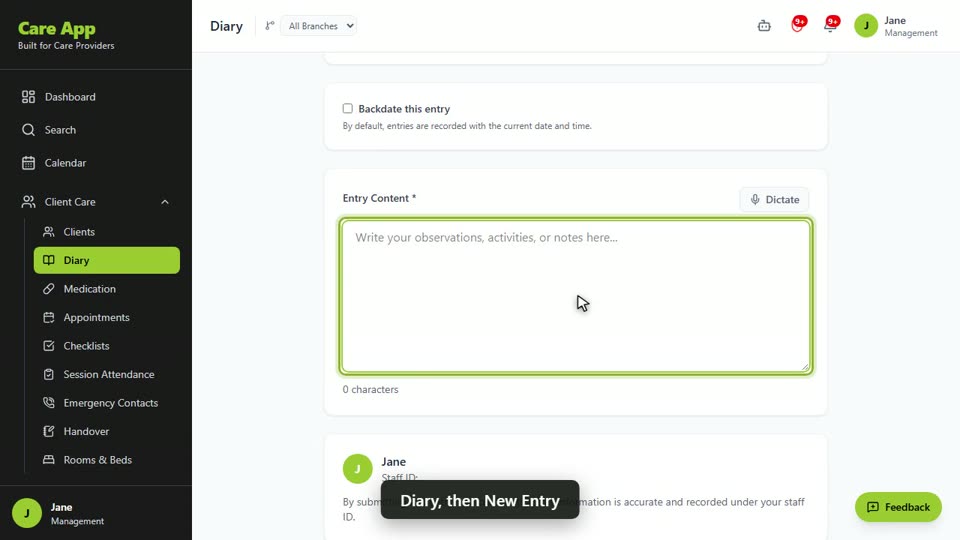
Watch the guide video: Video 3: Caring for a client day to day (2:51)
Videos were recorded in September 2026, so a few screens may look slightly different today.
Still stuck? Email hello@care-app.uk and tell us which screen you were on. We aim to reply within a few hours.